From Spreadsheet to Oracle Cloud: A Deep Dive into the Visual Builder Excel Add-in
1. Introduction — Excel Is Not Going Away
Despite the proliferation of sophisticated cloud dashboards and SaaS UIs, one truth remains constant across Oracle Fusion implementations: business users love Excel. Finance teams build their month-end reports in it. HR administrators bulk-update employee records in it. Procurement teams track PO statuses in it. It is familiar, flexible, and powerful.
The challenge has always been the last mile: getting data out of Oracle Fusion, editing it in Excel, and getting it back — accurately, quickly, and without custom development.
Oracle Visual Builder Add-in for Excel solves exactly this problem. It is a free Microsoft Excel add-in that creates a live, bidirectional bridge between Excel spreadsheets and Oracle Fusion Cloud REST APIs — enabling business users to download data, work with it in Excel, and upload changes directly back to Oracle Fusion with full validation and error reporting.
In this article, I will break down how the add-in works, what it can do, and how to get started — drawing on practical experience implementing Oracle Fusion Cloud across ERP, HCM, and SCM modules.
2. What Is the Oracle Visual Builder Add-in for Excel?
The Oracle Visual Builder Add-in for Excel (often abbreviated as VB Excel Add-in) is an add-in for Microsoft Excel that allows Excel users to interact with business data available from REST services. Once installed, it adds a new Oracle Visual Builder ribbon tab to Excel — the central control panel for all add-in operations.
At its core, the add-in connects Excel to Oracle Fusion Cloud (or any OpenAPI-compliant REST service) and allows users to:
• Download business data into an Excel worksheet (e.g., employees, invoices, purchase orders)
• Review and modify records directly in familiar Excel cells
• Create new records in Excel and upload them to Oracle Fusion
• Upload changes back to the REST service with row-level status tracking
• Share configured, published workbooks with other business users who only need the add-in installed
|
💡
Key
Distinction: The VB Excel Add-in is NOT a simple export/import tool. It
creates a live, real-time connection to Oracle Fusion REST APIs. Changes
uploaded through the add-in trigger the same business validations and rules
as changes made directly in the Oracle Fusion UI. |
2.1 How It Fits Into the Oracle Ecosystem
|
Component |
Role in the
Architecture |
|
Oracle Fusion
Cloud REST APIs |
Source of
truth — the add-in reads and writes data here |
|
OpenAPI
Service Description |
Metadata
document that describes API endpoints, fields, and relationships |
|
Oracle Visual
Builder Add-in |
Excel-based
client that calls the REST APIs and manages data synchronisation |
|
Integrated
Workbook (.xlsx / .xlsm) |
The Excel
workbook configured with layouts and published for end users |
|
Business
Objects (BO) |
Resources
like Invoice, Employee, or Purchase Order exposed via REST |
|
Layouts
(Table / Form-over-Table) |
How business
objects are displayed and managed within an Excel worksheet |
3. Key Concepts and Terminology
Before building your first integrated workbook, it is essential to understand a handful of core concepts. These terms appear throughout the Oracle documentation and the add-in interface.
|
Term |
Definition |
Example |
|
Integrated
Workbook |
An Excel
workbook (.xlsx or .xlsm) configured to connect to one or more REST business
objects |
EmployeeManagement.xlsx
connected to the HCM Worker REST API |
|
Business
Object (BO) |
A REST
resource representing an enterprise data entity, including collection and
item paths, fields, and relationships |
invoices,
purchaseOrders, workers, projects |
|
REST Service |
The Oracle
Fusion Cloud REST API endpoint the add-in connects to |
https://<host>/fscmRestApi/resources/latest/invoices |
|
OpenAPI
Description |
A metadata
document (JSON/YAML) describing the REST API — required to build layouts |
https://<host>/fscmRestApi/resources/latest/invoices/describe |
|
Layout —
Table |
Displays
multiple records in rows and columns — ideal for bulk review and edit |
Listing all
open purchase orders for a buyer |
|
Layout —
Form-over-Table |
Displays a
parent record (Form) with its child records below (Table) — for parent-child
data |
Invoice
header (Form) with invoice lines (Table) |
|
Catalog |
A named
collection of business objects registered in the workbook — the add-in's data
source registry |
Procurement
Catalog containing PurchaseOrders and Suppliers BOs |
|
Publish |
Making a
configured workbook available for end users to download and use |
Publishing
the Supplier Invoice workbook to the team |
4. Installation — Step-by-Step
The Oracle Visual Builder Add-in for Excel is available as a free download from Oracle's official download page. There are two installer types available:
• Current User Installer: Installs for the currently logged-in Windows user only. No admin rights required. Recommended for individual consultants and power users.
• All Users Installer: Installs for all Windows users on the machine. Requires administrator rights. Recommended for enterprise-wide deployment.
|
1 |
Download
the Installer Visit:
https://www.oracle.com/downloads/cloud/visual-builder-addin-downloads.html Sign in with your Oracle Single Sign-On (SSO) account. Accept the license agreement and select your platform (Windows
only — Mac is not currently supported). Download the installer (.exe file) for your required installer
type. |
|
2 |
Run
Prerequisites Check The installer performs an automatic software dependency check
before proceeding. Required: Microsoft Excel (Microsoft 365, Excel 2019 or later
recommended). Required: Microsoft .NET Framework (version as specified in
the current release notes). If any required component is missing, installation will
terminate and guide you to install prerequisites first. |
|
3 |
Complete
Installation Run the downloaded installer and follow the on-screen prompts. No additional configuration is needed during installation. Once complete, launch Microsoft Excel. |
|
4 |
Verify
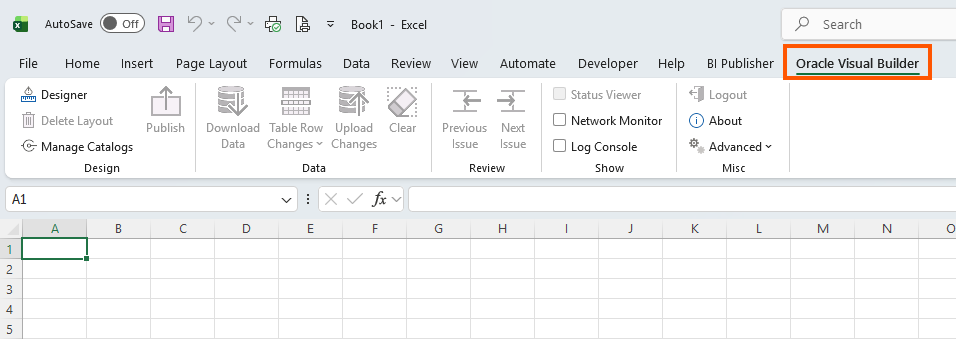
the Ribbon Tab Open a blank Excel workbook. You should now see a new 'Oracle Visual Builder' tab in the
Excel ribbon. If the tab is not visible: go to File → Options → Add-ins →
Manage COM Add-ins → Ensure the Oracle Visual Builder Add-in is listed and
checked. The presence of this tab confirms the installation was
successful. |
|
⚠️
Supported Platform The Oracle
Visual Builder Add-in for Excel is supported on Microsoft Windows only. macOS
is not currently supported. Excel must be a desktop installation — Excel
Online (browser) is not supported. |
5. Understanding the Oracle Visual Builder Ribbon Tab
After installation, the Oracle Visual Builder ribbon tab becomes your control center. Its buttons serve two audiences: workbook developers (who configure and publish workbooks) and end users (who download data, make changes, and upload them back).
|
Ribbon
Button |
Audience |
Purpose |
|
Designer |
Developer |
Launches the
New Layout Setup wizard — the starting point for configuring an integrated
workbook |
|
Manage
Catalogs |
Developer |
Add, view,
and manage REST service catalogs (collections of business objects) in the
workbook |
|
Download Data |
End User |
Connects to
the REST service and populates the worksheet with current data |
|
Upload
Changes |
End User |
Sends
modified/created rows from the worksheet back to the REST service |
|
Table Row
Changes |
End User |
Selects
specific rows to upload (instead of uploading all pending changes) |
|
Publish |
Developer |
Prepares the
workbook for distribution to end users |
|
About |
Both |
Displays
version information and diagnostics for the installed add-in |
6. Building Your First Integrated Workbook — A Practical Walkthrough
Let's walk through creating an integrated workbook connected to the Oracle Fusion Cloud Procurement REST API to manage Purchase Orders. This is one of the most common practical use cases for Oracle ERP consultants.
6.1 Identify the REST API Endpoint and Service Description
Every integrated workbook starts with an OpenAPI service description URL. For Oracle Fusion Cloud, the pattern is:
|
Base REST URL:
https://<your-fusion-host>/fscmRestApi/resources/latest/ Business Object: purchaseOrders Service Describe:
https://<your-fusion-host>/fscmRestApi/resources/latest/purchaseOrders/describe Examples by module: Financials (AP):
.../fscmRestApi/resources/latest/invoices/describe HCM Workers:
.../hcmRestApi/resources/latest/workers/describe SCM Requisitions:
.../fscmRestApi/resources/latest/purchaseRequisitions/describe Projects:
.../fscmRestApi/resources/latest/projects/describe |
6.2 Create a Table Layout (for Bulk Record Management)
Use a Table layout when you need to view, edit, or create multiple records of the same type — such as reviewing all open purchase orders or bulk-updating employee cost centers.
|
1 |
Open
Excel and Navigate to the Add-in Create a new blank workbook in .xlsx or .xlsm format. Click the 'Oracle Visual Builder' ribbon tab. Click on the cell where you want the data table to begin
(e.g., cell A1). |
|
2 |
Launch
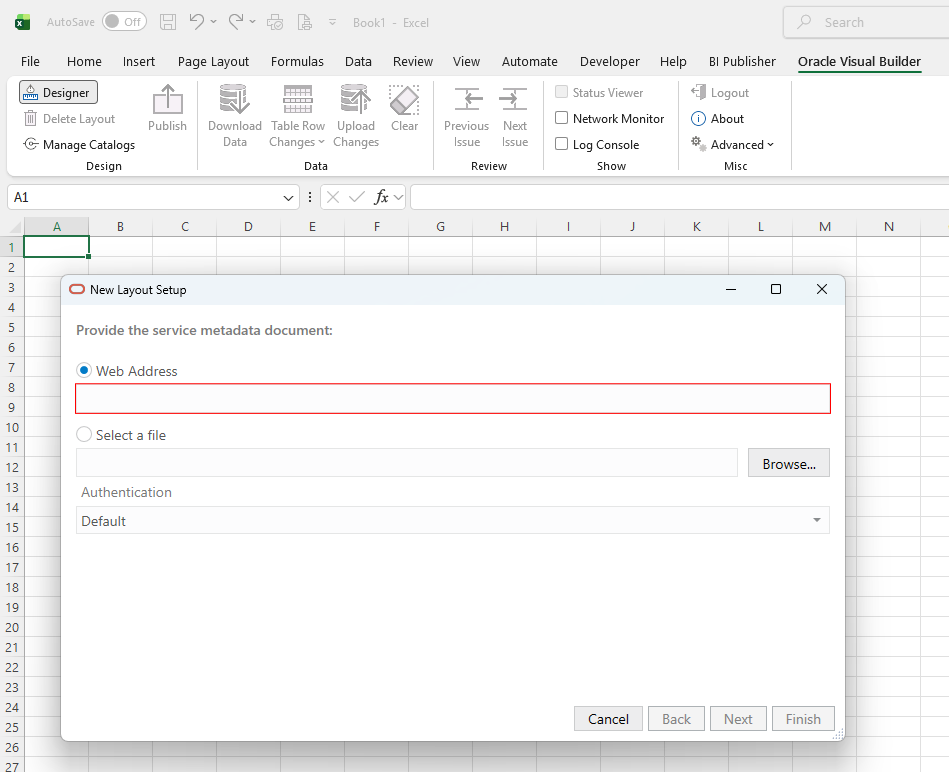
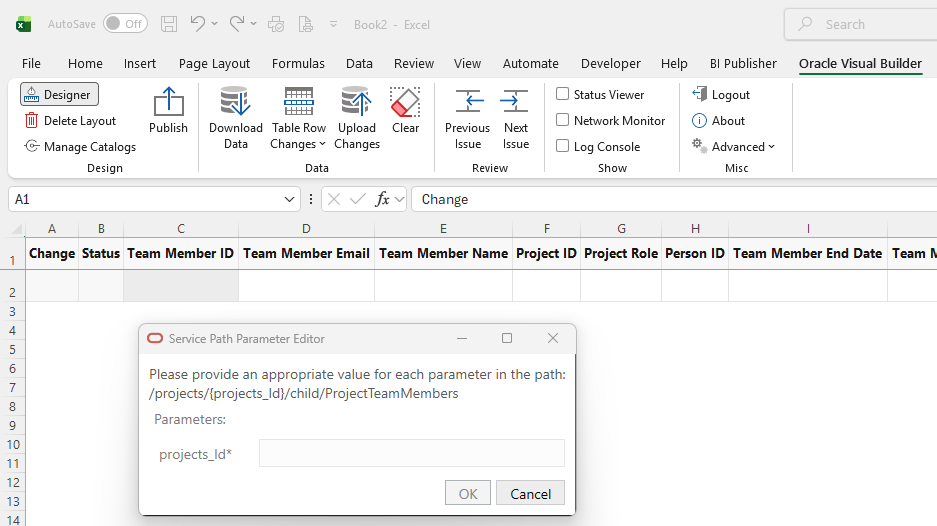
the Designer Click 'Designer' in the Oracle Visual Builder ribbon. You will be prompted for the service description document. Select 'Web Address' and enter your service describe URL. Example:
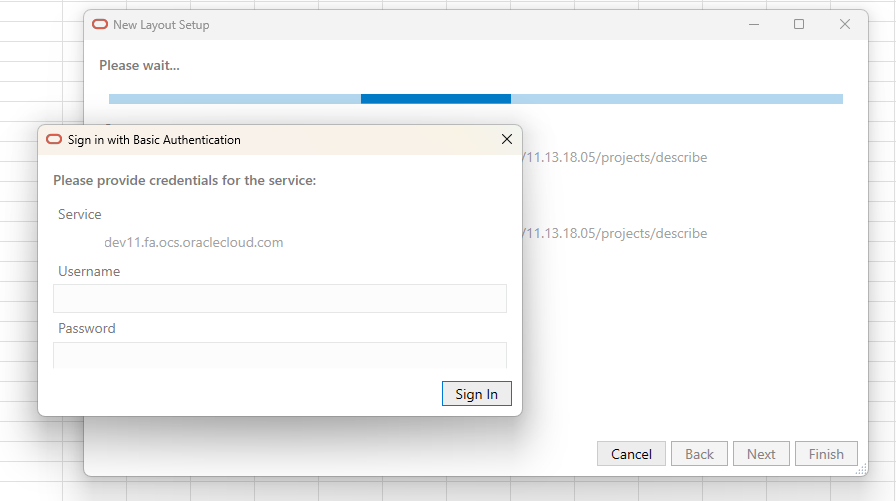
https://<host>/fscmRestApi/resources/latest/projects/describe Click Next — you will be prompted to authenticate with your
Oracle Fusion credentials. |
|
3 |
Select
Business Object and Layout Type The add-in parses the OpenAPI description and lists available
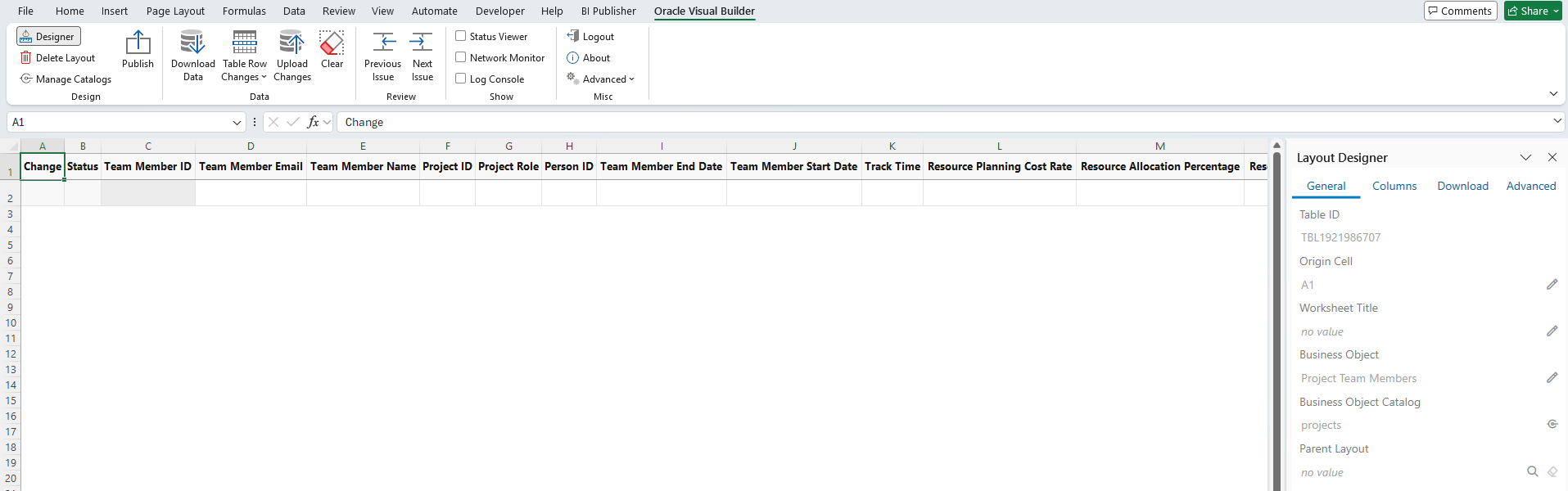
business objects. Select 'project team members' (or your target object). When prompted for layout type, select 'Table Layout'. Click OK. |
|
4 |
Select
Fields to Display The Layout Designer opens showing all available fields from
the business object. Select the fields you want visible in the Excel table — e.g.,
Team member end date. You can drag to reorder columns. Optionally set filters (e.g., show only Projects with
specific team member). Click Done. |
|
5 |
Download
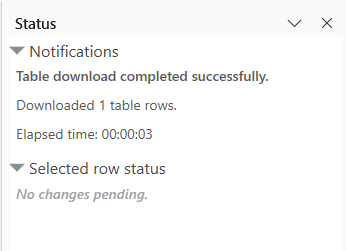
Data and Test The worksheet is now configured. Click 'Download Data' in the
ribbon. The add-in calls the Oracle Fusion REST API and populates the
worksheet with live data. You will see a Status column and a Change column added
automatically by the add-in. Try editing a value in a row — the Change column will show
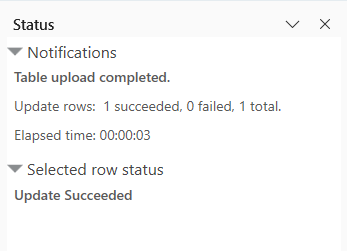
'Update' indicating a pending change. Click 'Upload Changes' — the add-in sends the change to Oracle
Fusion via the REST API. The Status column will show 'Succeeded' or display the error
returned by Oracle if validation fails. |
|
✅
Pro Tip — Status Column The Status
column is your friend. Oracle Fusion's business rules still apply when
uploading via the add-in — if a field is required, if a value fails a lookup
validation, or if the record is locked, the exact error message from Oracle
Fusion appears in the Status column. This makes the add-in an excellent tool
for troubleshooting bulk data issues. |
6.3 Create a Form-over-Table Layout (for Parent-Child Data)
Use a Form-over-Table layout when your business object has a parent-child relationship — for example, an Invoice (parent) with Invoice Lines (child), or a Purchase Order (parent) with PO Lines (child).
The process is identical to creating a Table layout up to Step 3. When selecting the layout type, choose Form-over-Table Layout. The add-in will then prompt you to select the child business object. The resulting worksheet displays:
• The parent record fields in a Form section at the top of the worksheet
• The child records in a Table section below the form
• Navigation controls to move between parent records and view their associated children
|
📌
Example — Invoice Header and Lines For the AP
Invoices business object, a Form-over-Table layout would show the Invoice
Header (supplier, invoice number, invoice date, amount) in the form, and all
Invoice Lines (line number, item, quantity, unit price, distribution account)
in the table below. Editing a line and uploading changes updates the specific
invoice line in Oracle AP. |
7. Real-World Use Cases Across Oracle Fusion Modules
The VB Excel Add-in can be connected to any Oracle Fusion REST API that exposes an OpenAPI service description. The following table captures the most impactful use cases I have encountered across Oracle Fusion implementations:
|
Module |
Business
Scenario |
Business
Object |
Layout Type |
Business
Value |
|
ERP —
Payables |
Review and
bulk-update supplier invoices pending approval |
invoices |
Form-over-Table |
Finance team
manages invoice exceptions without switching between Fusion screens |
|
ERP —
Payables |
Bulk-create
supplier invoices from a CSV feed |
invoices |
Table |
Eliminates
manual data entry; replaces brittle FBDI for small volumes |
|
ERP — GL |
Review
journal entries and update descriptions before posting |
journals |
Form-over-Table |
Accountants
work in Excel and post corrected journals directly |
|
ERP —
Procurement |
Review all
open POs with buyer, supplier, and status |
purchaseOrders |
Table |
Procurement
managers get a live, filterable PO dashboard in Excel |
|
ERP —
Procurement |
Bulk-close
purchase orders at year-end |
purchaseOrders |
Table |
Year-end PO
cleanup done in bulk without navigating individual records |
|
HCM — Core HR |
Bulk-update
employee cost centres or job assignments |
workers |
Table |
HR admins
handle org restructure data updates in a familiar format |
|
HCM — Absence |
Review
absence balances across a team |
absenceBalances |
Table |
Managers see
team absence data in Excel for planning purposes |
|
SCM —
Inventory |
Review
on-hand inventory quantities by item and locator |
onhandQuantities |
Table |
Supply chain
analysts get live inventory snapshots in Excel |
|
Projects |
Review
project budgets and actuals side by side |
projects |
Table |
Project
managers review live project financial data without BI reports |
|
CX —
Subscriptions |
Manage
subscription records and subscription products |
subscriptions |
Form-over-Table |
CX operations
teams maintain subscription data in Excel |
8. How Does It Compare to Other Oracle Data Management Approaches?
As a consultant, you will often face the question: when should I use the VB Excel Add-in versus other Oracle Fusion data management tools? The following comparison helps clarify the right tool for the right job:
|
Approach |
Best For |
Limitations |
When NOT to
Use VB Excel Add-in |
|
VB Excel
Add-in |
Ad-hoc bulk
edits, business user-driven data management, real-time data access with
validation |
Windows only,
REST API must support OpenAPI, not for very large datasets |
Large-volume
loads (10,000+ records), complex transformations |
|
FBDI
(File-Based Data Import) |
Large-volume
initial loads or periodic batch imports |
One-way
import only; no real-time validation; requires FBDI template mapping |
When users
need real-time feedback or live data browsing |
|
ADFDI (ADF
Desktop Integrator) |
Forms-based
desktop integration with complex workflow |
Requires ADF
configuration; less flexible than VB Excel Add-in |
Modern
REST-API-first implementations — ADFDI is older technology |
|
Oracle Fusion
UI |
Standard
transactional data entry for individual records |
Not efficient
for bulk operations; business users can find UI complex |
Bulk updates
across hundreds of records |
|
OIC + FBDI |
Automated,
scheduled, high-volume integration from external systems |
Not suited
for ad-hoc, user-initiated operations |
When a human
is doing the data review and editing in Excel |
|
📊
When to Choose the VB Excel Add-in The sweet
spot for the Oracle VB Excel Add-in is: small-to-medium volume (under ~5,000
records), user-initiated (not automated), requiring real-time validation,
where business users are more comfortable in Excel than in the Oracle Fusion
UI. It perfectly fills the gap between manual UI data entry and full
automated integration via OIC. |
9. Consultant Best Practices
After using the VB Excel Add-in across multiple Oracle Fusion implementations, here are the practices that have made the most difference:
9.1 Always Start From the /describe Endpoint
Never manually build a business object catalog by guessing field names. Always connect the add-in to the official Oracle Fusion /describe endpoint. This ensures field names, data types, and child object relationships are correctly mapped.
9.2 Use Filters to Limit Downloaded Data
Configure appropriate filters in the Layout Designer before publishing a workbook. Downloading 50,000 records into Excel is slow, error-prone, and unnecessary. Business users should only see the records relevant to their task — e.g., 'Open Purchase Orders for the last 90 days' rather than all POs ever created.
9.3 Publish, Do Not Share Raw Workbooks
Always use the Publish function before distributing a workbook to end users. The published workbook has the catalog configuration embedded but protected. End users need only the add-in installed — they cannot accidentally break the layout configuration.
9.4 Use .xlsm for Workbooks With Macros
If you plan to add Excel macros to extend the workbook's capabilities (e.g., automatic row formatting based on status, or custom data validation logic), save the workbook as .xlsm (macro-enabled). Oracle's documentation explicitly supports .xlsm alongside .xlsx.
9.5 Test Upload Validations Before Going Live
Always test with a small batch of records before publishing to business users. Oracle Fusion's business rules — required fields, lookup code validations, effective date rules — all apply when uploading via the add-in. Understanding which validations fire in your specific configuration before users hit them saves significant support effort.
9.6 Pair With Oracle Fusion REST API Documentation
Bookmark the Oracle Fusion REST API documentation for each module you work with. Each module page includes all available business objects, fields, child objects, and supported operations. Key links:
• Financials: https://docs.oracle.com/en/cloud/saas/financials/latest/farfa/index.html
• HCM: https://docs.oracle.com/en/cloud/saas/human-resources/latest/farws/index.html
• SCM / Procurement: https://docs.oracle.com/en/cloud/saas/supply-chain-and-manufacturing/latest/fasrp/index.html
• Projects: https://docs.oracle.com/en/cloud/saas/project-management/latest/fapjt/index.html
10. Known Limitations to Be Aware Of
No tool is without constraints. Being transparent about limitations helps set appropriate expectations with business users and project stakeholders:
|
Limitation |
Detail |
Workaround
/ Consideration |
|
Windows Only |
The add-in is
not supported on macOS |
Mac users
should use Oracle Fusion UI or access the workbook on a Windows VM |
|
Desktop Excel
Only |
Excel Online
(browser) is not supported |
Users must
have a local Microsoft Excel installation (Microsoft 365 recommended) |
|
OpenAPI
Required |
The REST
service must provide an OpenAPI-compliant service description |
Oracle Fusion
REST APIs all support this; custom APIs must be verified |
|
Volume Limits |
Very large
datasets (tens of thousands of records) can be slow to download |
Apply strict
filters; consider OIC + FBDI for high-volume automated loads |
|
One Layout
Per Worksheet |
Each
worksheet can only contain one layout (Table or Form-over-Table) |
Use multiple
worksheets in the same workbook for different business objects |
|
No Offline
Mode |
The workbook
requires a live connection to Oracle Fusion for download and upload |
Users must be
on a network with access to the Oracle Fusion instance |
|
XLSX / XLSM
Only |
Only .xlsx
and .xlsm formats are supported |
Avoid .xls or
other legacy Excel formats when creating workbooks |
11. Conclusion
The Oracle Visual Builder Add-in for Excel occupies a unique and genuinely useful position in the Oracle Fusion toolset. It bridges the gap between the power of Oracle Fusion Cloud REST APIs and the familiarity of Microsoft Excel — empowering business users to manage enterprise data in a tool they already know and trust, while ensuring all changes pass through Oracle's business validation rules.
For Oracle consultants, it is a tool worth adding to the standard implementation toolkit. It handles scenarios that are too cumbersome for the Fusion UI, too ad-hoc for OIC, and too low-volume for FBDI — which is exactly where most business user data management needs live in practice.
Key takeaways from this article:
• The VB Excel Add-in is a free, downloadable Excel add-in that creates a live bidirectional connection to Oracle Fusion Cloud REST APIs
•It supports two layout types: Table (flat list) and Form-over-Table (parent-child relationships)
• All uploads pass through Oracle Fusion business validations — it is not a backdoor data loader
• It is accessible from the Oracle Visual Builder ribbon tab in Excel, with distinct functions for developers (Designer, Publish) and end users (Download, Upload)
• Best suited for small-to-medium volume, user-initiated, real-time data management tasks
• Workbooks are configured once by a developer and published for business users to consume
• Windows and desktop Excel only — Mac and Excel Online are not supported